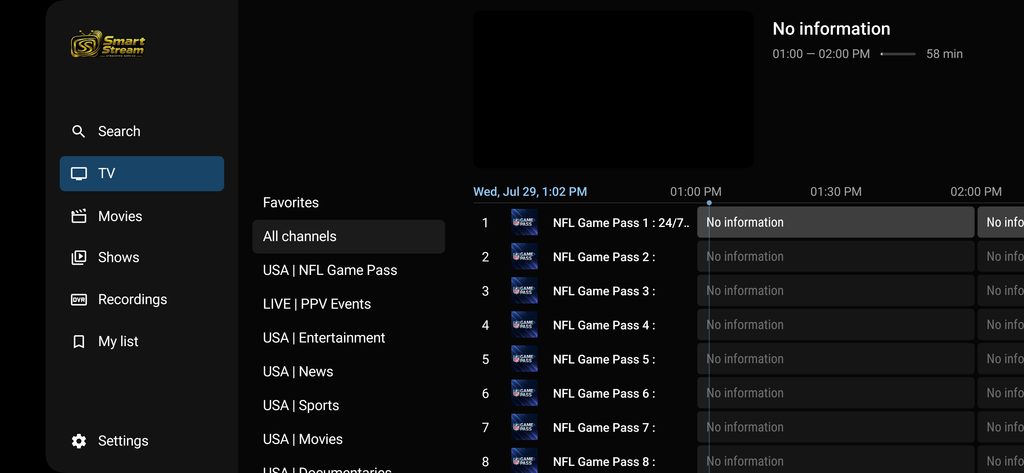
These tutorials are for those for you using the Smart Stream Tivimate app like the one pictured above.
HOW TO FORCE UPDATE YOUR EPG
Go to SETTINGS, click on EPG in the menu on the right, and then click UPDATEEPG
HOW TO FORCE UPDATE YOUR PLAYLIST
Go to SETTINGS, click PLAYLISTS in the menu on the right, then click UPDATE ALL PLATLISTS
ADDING CHANNELS TO YOUR FAVORITESLIST
Locate the channel that you’d like to add to your favorites list. Long press the select button on your remote and click ADD TO FAVORITES in the menu on the right. That channel will now be in your favorites list
REMOVING CHANNELS FROM YOUR FAVORITES LIST
Under your favorites list, long press the select button on your remote control and select REMOVE FROM FAVORITES from the side menu that pops up on the right. That channel will no longer be in your favorites list.
HOW TO RECORD A TV SHOW
Select the category for the channel you wish to record. Once in the category, locate the channel and the show and long press the select button to pull up the side menu and select RECORD. All of your recordings can be found under recordings in the mean menu.
HOW TO WATCH MOVIES AND SERIES
Select either MOVIES or SERIES from the main menu. In this example, we selected MOVIES. Choose a category of the movie you’d like to watch and locate a movie. When you click on it, you can click PLAY to watch the movie, TRAILER to watch the movie trailer, or ADD TO MY LIST to add the movie to your list for later which can be found under MY LIST in the main menu at any time.
HOW TO SHOW/HIDE GROUPS & CATEGORIES
Click on SETTINGS to pull up the main menu and then click on PLAYLISTS. Click on the SMART STREAM playlist and scroll down to MANAGE GROUPS. Select the type of group you’d like to modify (TV, MOVIES, OR SERIES). You can then toggle the switches next to each category that you’d like to hide/show in the primary list.