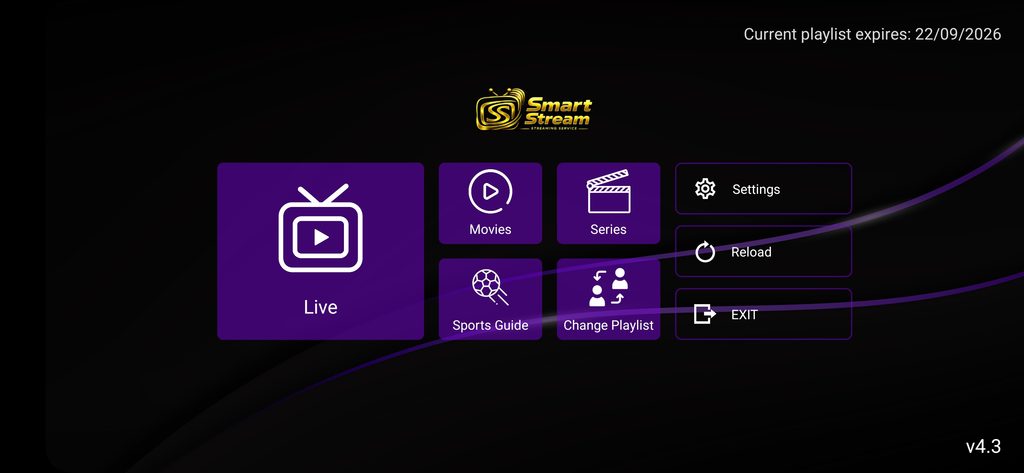
These tutorials are designed for those of you using the SmartStream branded IBO app (purple theme).
HOW TO HIDE LIVE CATEGORIES
Go to SETTINGS to pull up the main settings menu. Click on HIDE LIVE CATEGORIES to pull up a list of all the live TV channel categories. Select any of the categories that you want to hide and press OK
HOW TO HIDE VOD CATEGORIES
Go to SETTINGS to pull up the main settings menu. Click on HIDE VOD CATEGORIES to pull up a list of all the VOD categories. Select any of the categories that you want to hide and press OK
HOW TO HIDE SERIES CATEGORIES
Go to SETTINGS to pull up the main settings menu. Click on HIDE SERIES CATEGORIES to pull up a list of all the series categories. Select any of the categories that you want to hide and press OK
ADD CHANNELS TO FAVORITES LIST
Click on LIVE to pull up live TV. Select the channel category for the channel you want to add to favorites, and press and hold select on the channel you’d like to add to favorites. Those channels will now show in your favorites list. You can remove favorites by pressing and holding select on a favorite channel to remove it.
ADD MOVIES TO FAVORITES LIST
Click on MOVIES to pull up a all movies. Select the movie category for the movie you want to add to favorites, and press and hold select on the movie you’d like to add to favorites. Those movies will now show in your favorites list. You can remove favorites by pressing and holding select on a favorite movie to remove it.
ADD SERIES TO FAVORITES LIST
Click on SERIES to pull up a all tv shows. Select the series category for the show you want to add to favorites, and press and hold select on the series you’d like to add to favorites. Those series will now show in your favorites list. You can remove favorites by pressing and holding select on a favorite series to remove it.
CHANGE DEVICE TYPE
By going into SETTINGS, you can choose SELECT DEVICE TYPE to swap between TV and Mobile devices. This typically sets itself automatically depending on the device the app is installed on, but if you ever need to change it then this is how you do it.
HOW TO SET UP SUBTITLES
Click on SETTINGS and then on SUBTITLE SETTINGS. You can toggle subtitles on, change subtitles size, text color, and background color.
CHANGE AUTOMATIC UPDATE SETTINGS
Click on SETTINGS then click on AUTOMATIC. From there you can change how often the list of live TV, movies, and series are updated.